Note
Access to this page requires authorization. You can try signing in or changing directories.
Access to this page requires authorization. You can try changing directories.
We're excited to announce the availability of the Visual Studio 2026 July update. This release marks the beginning of a new era for Visual Studio with deep platform integration of AI, stronger fundamentals, and improved performance.
Download Visual Studio 2026 Insiders to enjoy these new features and improvements.
Version 12023.133
Released on July 28, 2026.
| Top bug fixes | From the community |
|---|---|
| Extension update is failing to uninstall the old version, leading to VS loading both copies | Feedback ticket |
| Debugger stepping triggers false "Hot Reload changes not supported" dialog | Feedback ticket |
| Improves the C++ msbuild parse solution time. |
Version 12020.428
Released on July 22, 2026.
| Top bug fixes | From the community |
|---|---|
| ASP.NET .NET Framework 4.8 scaffolding no longer offers views/controllers | Feedback ticket |
| Git commit message box truncates text or shows "Required field is missing" on quick Ctrl+Enter | Feedback ticket |
Features
Released on July 14, 2026.
GitHub Copilot
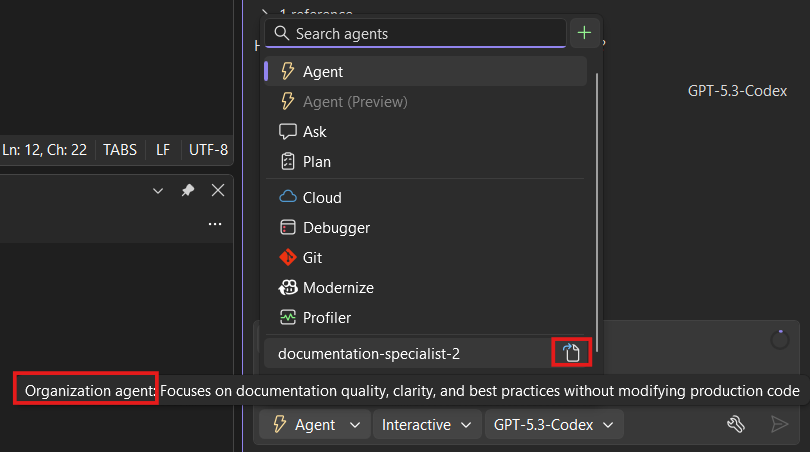
Organization-level custom agents
GitHub organization owners can now add custom agents across their organization.
Note: This feature requires a GitHub organization.
You can now share custom agents across repositories in your organization. GitHub organization or enterprise owners can add custom agents that everyone in the organization can use. This creates a consistent experience for your team and keeps Copilot aligned with your organization's workflow.
For administrators, see Preparing to use custom agents in your organization or Preparing to use custom agents in your enterprise.
When you work on repositories in your organization, Visual Studio automatically detects org-level custom agents and shows them in your agent picker. Hover over an agent to see its description and organization source. Click the button to view the agent definition file.
Give it a try and set up your org-level custom agents today to enhance your team's agentic workflow!
Access your Copilot usage
Jump to your Copilot plan usage from the context window or the badge menu, whichever works best for you.
Keep tabs on your Copilot plan usage without leaving your workflow. You can now check your plan usage directly from the context window in Visual Studio 18.9.
Click the donut chart in the upper right corner of your prompt box to see your context window usage, then click the button to open your full plan usage details.
We've also refined the usage window and notifications to make them clearer and easier to act on. You'll always know when you're approaching your limit and what options you have to continue.

Better model control with improved picker and management view
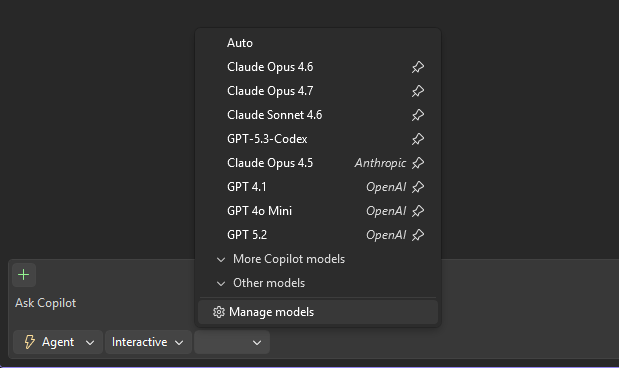
Pin your favorite models, collapse the rest, and access a comprehensive management view with full model details and customization options.
Finding and managing your models just got easier. Visual Studio 18.9 redesigns the model picker and adds a new management view so you have full clarity and control over your Copilot models.
Improved model picker - The dropdown is now smarter and faster to navigate. Pin your favorite models to keep them at the top, and collapse models you don't frequently use to reduce clutter. You see what matters most without digging through the full list every time.
Model management view - Click Manage models from the picker to open an expanded view with complete details and controls:
- View cost information, capabilities, and context window sizes for each model
- Manage your custom models alongside Copilot models in one place

Git tooling
Git submodule support 📣
Manage Git submodules directly in Visual Studio with integrated add, update, delete, and navigation support.
One of the most highly requested Git capabilities, first-class Git submodule support is now available in Visual Studio 18.9, making it easy to manage submodules without leaving the IDE.
Submodules are now fully integrated into the Git experience with a dedicated Submodules section in the Git Repository window, improved visibility in Git Changes, and a branch/repository picker that reflects the parent-child repository hierarchy.
From the Submodules section, you can add, update, and delete submodules. Visual Studio also automatically discovers and activates submodules when you open a solution or folder, while keeping them out of the general local repositories list to reduce clutter.
Submodules are treated as read-only by default. If you'd rather work inside a submodule than just consume it, open Tools > Options > Source Control > Git, find the Automatically activate multiple repositories setting, and select Yes, include submodules.
This is the first milestone of an evolving experience, with additional improvements planned for future releases.
📣 See feature ticket to share your feedback and continue the conversation.


Worktrees: work on multiple branches at once 📣
Create, open, and manage Git worktrees to work on multiple branches simultaneously without stashing or re-cloning.
If you've ever stashed half-finished work to check another branch, worktrees let you skip that step. Each worktree is a separate working directory for the same repo, so your in-progress work stays untouched while you work elsewhere.
Right-click any branch in the Git Repository window and select New Worktree from to create a worktree. Choose to start from a new branch or use the selected one. You can also create a worktree from any commit in the history graph. Open it in your current window or spin up a new instance to work on both branches side by side.
Worktrees appear inline with your branches. Switch between them from the branch list, branch picker, or repo picker. When you're done, right-click and select Delete Worktree to clean up.
📣 See feature ticket to share your feedback and continue the conversation.


Review commits with Copilot
Get a private Copilot code review on your commits.
Copilot code review already gives you feedback on uncommitted changes. Now you can get that same review after you've committed.
Right-click any commit in the Git Repository window and select Review Commit to review its changes. Select two commits to review everything that changed between them.
You can also reference a commit in Copilot Chat and ask the Git agent to review it.
Copilot's review comments appear inline on the changed files. A single commit opens in the Commit Details window. A two-commit range opens in the Compare Commits view. Select any comment to jump straight to that code.
Reviews stay local to your Visual Studio session and work with both GitHub and Azure DevOps repositories.
To enable this feature, go to Tools → Options → GitHub → Copilot → Source Control Integration and turn on Review Git changes locally and provide suggestions from comments.


Compare a file to your working tree 📣
Compare an earlier version of a file with your current local changes.
Want to see how a file has changed since an earlier commit? You can now compare any version of a file against your current working tree.
In Solution Explorer, right-click the file and select Git → View History. Then, in the file's history, right-click a commit and select Compare with Working Tree.
Visual Studio opens a diff with the commit's version on the left and your working tree version on the right. You'll see everything that changed since that commit, committed and uncommitted.
📣 See feature ticket to share your feedback and continue the conversation.


PR review updates: autocomplete and timeline 📣
Set a pull request to complete automatically and see its update history in Visual Studio.
We're continuing to round out the pull request experience in Visual Studio with more updates.
- Autocomplete / Auto-merge: set a pull request to complete automatically once its policies and required approvals are met.
- Update timeline: see a pull request's history of pushes, votes, and other events in the Overview.
These updates work with GitHub and Azure DevOps repositories.
📣 See feature ticket to share your feedback and continue the conversation.

| Top bug fixes | From the community |
|---|---|
| Corrects an issue with decltype of variables captured by value in certain non-mutable lambdas | |
| Updating to latest Typescript 7.0 Version |
From our entire team, thank you for choosing Visual Studio! For the latest updates, resources, and news, check out the Visual Studio Hub and stay in touch.
Happy coding!
The Visual Studio team
Note
This update may include new Microsoft or third-party software that is licensed separately, as set out in the 3rd Party Notices or in its accompanying license.
Note
We may use an AI-based tool to analyze diagnostic data (such as dumps and traces) collected through Visual Studio and Visual Studio Feedback to help improve user experience. If you wish to opt out, follow the steps here